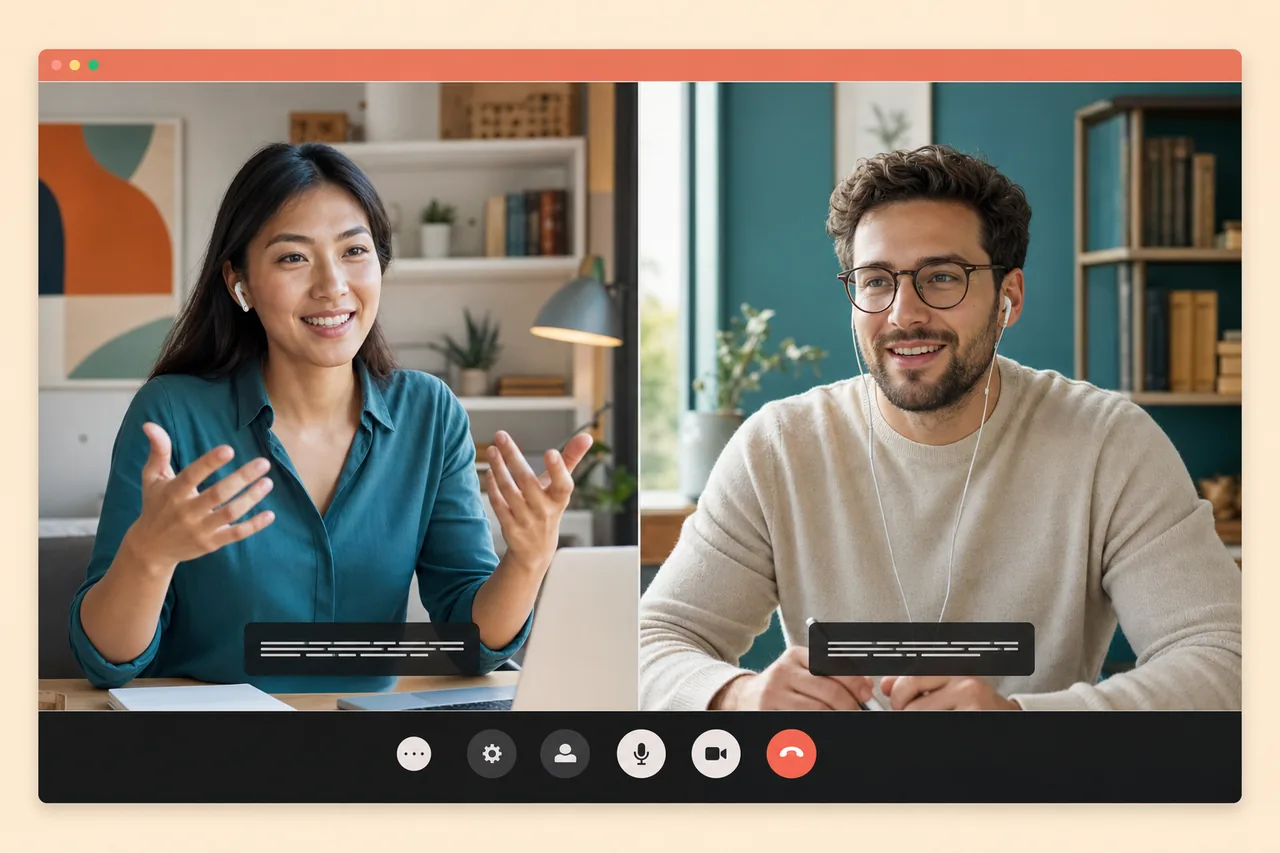
A real-time translation app for work calls is one that lets both people keep talking in their own language while the translation reaches the other side as speech — not only as on-screen text. The best option depends on where you meet and who needs translated voice. Talkniva offers a shared browser room; JotMe and Transync AI provide desktop workflows; Palabra brings translation into existing meetings. Google Meet, Teams and Zoom also offer native voice translation, with different access requirements.
Updated September 28, 2026. This guide compares 12 options using their official product pages, setup instructions and pricing documentation. Talkniva publishes it and is included in the comparison. We have not conducted a hands-on accuracy or latency benchmark; the recommendations below match documented capabilities to meeting needs.
The decisive question is practical: will both people hear the translation, on the devices and accounts they will actually use? A large language count or a low advertised subscription price does not answer that on its own. For a freelancer presenting a proposal, a salesperson talking to a prospect, or a consultant discussing a project, start from the table and shortlist by meeting setup — it is a use-case map, not an overall quality ranking. Details and source links for each option follow the table.
Compare the best live and real-time translation apps
| Option | Meeting setup | Translation experience | Main buying consideration |
|---|---|---|---|
| Talkniva | Shared browser room; third-party meeting integration in beta | Translated voice and live captions in its own room | Prepaid usage per active guest; 13 supported languages |
| JotMe | Desktop session alongside the meeting | Captions; one-way or two-way speech with Fast Audio setup | Audio permissions, routing and a 5× usage multiplier for Fast Audio |
| Transync AI | Desktop app alongside the meeting | One-way, two-way or multilingual translation; optional spoken playback | Virtual microphone setup to send translated speech to other participants |
| Palabra / Talo | Translation joins an existing meeting | Palabra documents two-way conversation and presentation modes | Bot admission, meeting-plan allowance and terminology settings |
| DeepL Voice | Desktop voice workflow across Teams, Zoom and Meet | Voice translation and translated subtitles | Voice and subtitle language coverage differ; request the appropriate plan |
| Google Meet | Native Speech Translation | Spoken translation between English and six listed languages | Eligible account, one language pair per meeting and a 90-minute limit |
| Microsoft Teams | Native Interpreter agent | Speech-to-speech translation | Copilot licensing; anonymous and guest users cannot use Interpreter |
| Zoom | Native Voice Translator | Translated audio selected by each user | Eligible add-on or ZoomMate, desktop version and five listed languages |
| KUDO | Meeting and event translation | Presentation audio and captions; conversational mode described as captions-only | Distinguish AI modes from its separate human interpretation service |
| Wordly | Online, in-person and hybrid sessions | Translated audio and captions on participants’ devices | Hour packages and an audience/session workflow |
| Interprefy | Enterprise meetings and events; meeting agent or mobile access | AI speech translation and captions, including two-way use | Delivery setup, subscription or quote, and support requirements |
| Maestra | Browser translation, shared sessions and integrations | Live captions, translation and spoken dubbing | Different allowances for captioning, translation and dubbing |
For more detail on the output distinction, read our guide to a real-time voice translator for calls.
Browser rooms, desktop translators and meeting bots
1. Talkniva: a shared room for a scheduled client conversation
Talkniva provides a browser room where participants speak and listen in their own languages, with live captions. The host shares a link; the guest does not need an account or installation. It supports 13 languages.
Choose it when: you can invite the client into your own room for a proposal, interview, support conversation or project discussion. A hypothetical example is a Portuguese-speaking designer reviewing a brief with an English-speaking client.
Understand the tradeoff: Talkniva’s room is the meeting destination. Its separate feature for joining Microsoft Teams, Google Meet and Zoom meetings is in beta: an interpreter joins as a participant, and the user speaks and listens through Talkniva. Do not treat that as an invisible native overlay.
Payment: prepaid guest-hours, measured per active guest, with no subscription or free trial. Check the balance required for the number of guests you intend to invite.
2. JotMe: translation alongside the meeting, with notes and audio choices
JotMe’s desktop documentation describes a session that captures microphone and system audio while you use your meeting platform. It offers translated text and, with the Fast Audio model and the required audio setup, one-way or two-way translated speech. It also saves sessions and supports meeting notes.
Choose it when: you want translation alongside an existing meeting and value the transcript and follow-up workflow.
Understand the tradeoff: microphone access alone does not capture the remote participant. System-audio permissions and output routing matter. The Fast Audio model consumes 5× translation minutes even when translated audio playback is turned off; Premium Quality text translation uses a different multiplier.
Payment: check the provider’s current plans and what each allowance covers for the mode you will use.
3. Transync AI: desktop translation with explicit audio routing
Transync AI’s desktop quickstart documents one-way, two-way and multilingual modes, microphone and computer-audio capture, voice playback, and floating subtitles. You can provide keywords and context before the session.
Choose it when: you need to keep the client’s existing meeting platform and are comfortable configuring a desktop translation app.
Understand the tradeoff: hearing a translated voice locally does not automatically send that voice into the meeting. Transync documents a virtual microphone for participants who should hear your translated speech. Configure and test it in the meeting app before a client appointment; desktop and browser setups differ.
Payment: check the provider’s current plans and what each allowance covers for the mode you will use.
4. Palabra and Talo: translation that joins the meeting
Palabra’s meeting product lets you enter a Zoom, Google Meet or Teams link, select languages and voice settings, and join the call. It advertises more than 60 languages and supports custom glossaries. Its meeting plans distinguish two-way conversation from one-to-many presentation modes.
Choose it when: the client has already scheduled the meeting and permits an additional translation participant. Glossaries are worth evaluating when product names or specialist terminology recur.
Understand the tradeoff: confirm admission permissions, the exact voice-delivery setup and the allowance attached to the meeting product. Palabra’s API price is for developers integrating translation; it is not the price of a ready-to-use meeting subscription.
Talo also documents a translation bot for Zoom, Meet and Teams. Its pricing page states that Talo is now operated by Palabra.AI LTD and that existing subscriptions retain their terms. We group the two here rather than presenting them as unrelated vendors. Compare the specific product and plan offered to your account.
5. DeepL Voice: a business translation layer across meeting platforms
DeepL Voice for Online Meetings now describes voice-to-voice translation as well as translated subtitles across Microsoft Teams, Zoom Meetings and Google Meet. Its product page lists 30 voice-translation languages and more than 40 subtitle languages, and directs users to the desktop app for the full voice experience.
Choose it when: your organization wants a translation layer across several meeting platforms and is evaluating a managed business subscription.
Understand the tradeoff: a language available for subtitles is not automatically available for spoken output. Check the actual language pair and deployment requirements for your devices; a DeepL text-translation subscription should not be assumed to include the required Voice product.
Payment: DeepL says Voice pricing depends on product, volume and usage, and directs buyers to its plans or sales team for a tailored quote. Establish the Voice entitlement and guest experience before comparing its cost with a self-service translator.
Translation already built into the client’s meeting platform
Before adding another tool, check whether the client’s existing subscription supplies the voice translation you need. Native features can remove a separate installation, but their account and language restrictions are important for external calls.
6. Google Meet Speech Translation
Google’s official help documents speech translation between English and French, German, Hindi, Italian, Portuguese or Spanish. Eligible plans include Google AI Pro/Ultra and specified Workspace editions, including Business Standard and Plus.
Choose it when: the meeting is already in Meet, the host is eligible, and your pair is supported.
Understand the tradeoff: only one language pair can be configured for the meeting, and Google lists a 90-minute speech-translation limit. Participants must allow their voices to be translated. Meet room hardware can listen to translations but cannot have its own speech translated through that device; the feature is not included in live streams or recordings.
Payment: verify eligibility in the actual account and edition before buying a separate service. “Uses Google Meet” alone does not establish access to Speech Translation.
7. Microsoft Teams Interpreter
Microsoft’s Interpreter documentation describes speech-to-speech translation in Teams meetings and supported calls. It lists ten output languages and 20 interpretation hours per person/month with a Microsoft Copilot license; use beyond that allowance is subject to capacity.
Choose it when: licensed colleagues or partners already meet in Teams.
Understand the tradeoff: external participants must join with verified Microsoft 365 accounts and valid Copilot licenses to use Interpreter. Anonymous participants and guests cannot use it. That can decide the purchase for a freelancer whose client expects a guest link to be enough.
Microsoft also excludes several formats, including town halls, webinars and Teams Free meetings. Call support is for 1:1 Teams-to-Teams VoIP, not ordinary telephone-network calls. Recordings retain original audio rather than the interpreted audio.
Do not confuse the AI Interpreter agent with Teams’ separate feature for assigning human language interpreters.
8. Zoom Voice Translator
Zoom’s current setup guide documents translated audio inside Zoom, with independent speaking and listening language settings. It lists English, Chinese, French, Japanese and Spanish.
Choose it when: both the existing Zoom workflow and those language choices fit the call.
Understand the tradeoff: the guide requires the Live Translation add-on or ZoomMate, the feature enabled, and the Windows or macOS desktop app at version 7.0.0 or later. A participant enabling translated audio for themselves should not be treated as proof that every guest will automatically hear translated speech; verify each participant’s setup.
Payment: check the applicable add-on or ZoomMate entitlement and AI-credit terms. Zoom’s launch explanation describes credit-based metering. It also names additional languages and translation-projection features as planned; this comparison does not count roadmap items as available features.
Broader meeting, training and event platforms
These products also compete for live-translation budgets. Their session management, audience delivery and purchasing arrangements deserve separate consideration from a simple two-person client call.
9. KUDO: distinguish presentation audio from conversational captions
KUDO AI offers translated speech and captions in more than 70 languages. Its FAQ makes a crucial distinction: presentation mode provides translated audio and captions; conversational mode is described as translated captions only.
Choose it when: you are comparing translation for presentations, training, webinars or a wider organizational program, and can select the appropriate delivery mode.
Understand the tradeoff: the broader KUDO language count also includes its separate human interpretation offering. The plans page distinguishes 70-plus AI languages from 200 spoken and sign languages served through human interpretation. Neither that headline nor the phrase “bidirectional translation” establishes two-way AI voice in every mode.
Payment: KUDO documents AI-only pay-as-you-go credits or annual plans, and options combining AI with human interpretation. Ask for the mode, platform integration and services to be itemized in the quote.
10. Wordly: shared translation for meetings and audiences
Wordly delivers translated audio and captions to attendees on their phones, tablets or computers, with access through a link or QR code. It describes one-to-many and many-to-many sessions, plus glossaries, transcripts and summaries.
Choose it when: you organize recurring multilingual sessions, training or events and want participants to choose their listening or reading language on their own devices.
Understand the tradeoff: work through how the speaker audio reaches Wordly and how audience members receive it in the chosen meeting integration. That setup is a different purchasing decision from opening a dedicated two-person video room.
Payment: Wordly’s pricing page says packages start at approximately US$1,500 for 10 hours, usable in increments for up to 12 months. It supports online, in-person and hybrid use. Evaluate the package against your expected session volume rather than comparing its starting commitment with a monthly personal app subscription.
11. Interprefy: enterprise delivery, meeting agents and mobile access
Interprefy’s AI speech translation supports translated audio and captions, including one-way and two-way use, across more than 80 languages. Its Agent joins Teams, Zoom, Google Meet or Webex as a participant; attendees can access translations through a link or QR code.
Choose it when: you need multilingual access across business meetings, hybrid events and larger audiences, with a defined support arrangement.
Understand the tradeoff: select the access method first. The meeting Agent and Interprefy Now, which delivers translation through attendees’ smartphones after subscription, are different setups. Specify whether people must merely listen or also take part in a translated exchange.
Payment: the reviewed pages direct buyers to subscription plans or a tailored quote. Ask what the proposal includes for hours, access, meeting integrations and operational support.
12. Maestra: browser translation, dubbing and shareable sessions
Maestra Live runs in the browser and documents two-way dialogue, translated captions, spoken dubbing, a custom dictionary and session sharing by link or QR code. It also lists meeting and streaming integrations and tools for saving sessions and generating summaries.
Choose it when: translation is part of a broader captioning, presentation or media workflow, or you want to evaluate a browser tool with shared sessions.
Understand the tradeoff: transcription, translated text and spoken dubbing are separate capabilities. Do not buy a captioning allowance expecting it to include the same amount of voice translation.
Payment: check the provider’s current plans and what each allowance covers for the mode you will use.
What about Google Translate and travel translation apps?
For an in-person conversation, a shared phone can be the appropriate tool. Google Translate’s Live translate documentation describes a Conversation mode with spoken translations and a face-to-face text view.
That is a different setup from sending a client a meeting link or translating both sides of a remote video call. Keep travel and face-to-face tools on a separate shortlist unless their documented workflow matches the appointment. The same applies to prerecorded dubbing and text-translation products: a useful translation feature is not necessarily a live meeting feature.
How to choose for your next international client call
Use the meeting you already have planned as the test case. For example, a designer could rehearse a proposal with a colleague playing the client; a developer could use a short discussion of project scope. These are illustrative scenarios, not reported customer results.
- Confirm the destination. Can you send your own room link, or must you use the client’s Teams, Meet or Zoom invitation? Check whether the host permits translation bots and whether required apps can be installed.
- Test both directions. Have each person speak and confirm what the other hears. Captions on your screen, local voice playback and translated audio sent to the client are three different outcomes.
- Check the exact language pair and access. Use the devices, guest accounts and licenses planned for the real call. Do not infer spoken-language support from a subtitle-language list.
- Compare the relevant bill. Include the selected audio mode, usage multipliers, active guests, monthly or annual commitment, and any required meeting-platform license. A prepaid guest-hour is not the same billing unit as a transcription minute.
- Rehearse the difficult details. Try names, dates, prices and terminology from a non-confidential sample brief. Confirm important decisions in writing and agree on a fallback if the translation becomes unclear.
- Review what happens to the conversation. Check recording, transcript retention and sharing settings for the selected product and plan before discussing client information.
If a shared browser room fits your appointment, check Talkniva’s supported languages and prepaid guest-hour options, then create a room. If a client’s platform or licensing rules favor another option, use that requirement to narrow the comparison first.
Frequently asked questions
What is the best live translation app for a client call?
Choose by the meeting setup: a shared browser room, a desktop tool, a meeting bot, or translation built into the client’s platform. Check that both participants can hear translated speech in the required languages and that guest access, licensing and usage charges fit the call.
Are translated captions the same as two-way translated voice?
No. Captions are text to read. Two-way translated voice lets each person hear the other person’s speech in their chosen language. A product can offer both but restrict spoken output to certain modes, plans or language pairs.
Can I meet international clients without speaking their language?
Live voice translation can support conversations in the tool’s supported languages. It does not guarantee error-free communication, replace professional expertise, or cover every written task involved in delivering a service. Rehearse the call and confirm important details in writing.
Which Talkniva feature is in beta?
Joining third-party meeting rooms is currently in beta.