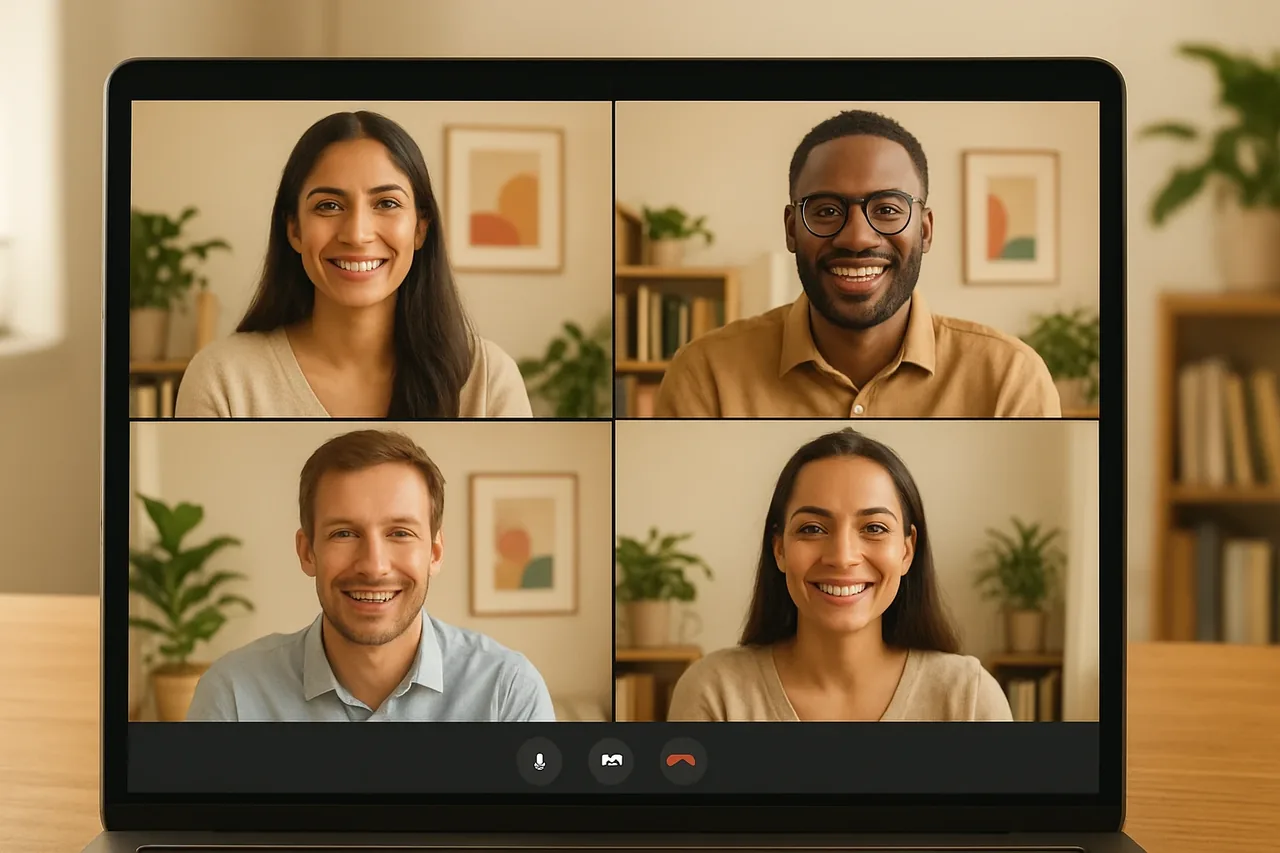
To translate a video call in real-time, both people join a Talkniva browser room by link, and each speaks and listens in their own native language, within the 13 supported languages. The integration with third-party meeting rooms is in beta. AI voice translation is not a human interpreter, so test it before a client call.
Translate video call in real-time: voice, captions and interpreters
If you hold discovery, scoping or follow-up calls with clients who speak another language, the first thing to sort out is what kind of translation you are getting. Talkniva is real-time voice translation for business calls: you speak, the other person hears their language, and the reverse. That is different from live captions, which are real-time text of what is said. Teams, for example, has built-in live captions that are a separate thing from spoken voice translation.
Teams offers two different things here. Its Interpreter agent is AI speech-to-speech interpretation, provided by Microsoft inside Teams. Its language interpretation feature uses professional human interpreters, and Microsoft does not supply them: organizations hire their own.
Talkniva’s AI translation is not a human interpreter. The sources gathered for this guide do not compare accuracy between AI and human interpreting, so this guide does not rank them. For more on the difference, see our post on real-time translators versus human interpreters.
How the Talkniva browser room works
Talkniva has its own room in the browser, and the meeting takes place there. You share the room link, the other person joins with no installation, and each of you speaks and listens in your native language. It is a separate room, not an overlay inside Zoom, Meet or Teams, so the client does have to join it.
If the meeting must stay in a third-party room, the integration with third-party rooms is in beta. You paste a Teams, Meet or Zoom link and the Talkniva interpreter joins as a participant, working only on the voice. Because it is in beta, it can be unstable: tell the participants that an interpreter is about to join, and admit it from the waiting room if there is one.
Platform features are a different path, and the research behind this guide covers Teams only. There, Microsoft provides the Interpreter agent, and its documentation mentions a monthly allowance of hours per person with a Copilot license. People who join anonymously or as guests cannot use it. Translated captions are a separate feature that depends on a Teams Premium or Microsoft Copilot license. For Zoom, Google Meet and WhatsApp video calls, read our dedicated posts rather than assuming the same rules apply.
On privacy, Talkniva does not record or store calls, audio, video or transcripts.
What to test before a discovery or scoping call
Microsoft says its Teams Interpreter is not optimized for rapid exchanges, interruptions or overlapping speech, because translation can take longer than the original speech. That statement is about Teams only. For a Talkniva call, our own suggestion is a short rehearsal with a colleague who speaks the other language: check that the audio is clear, that you can take turns without talking over each other, and that pauses feel natural.
For Teams Interpreter, Microsoft advises short sentences, frequent pauses, simpler technical language and one language at a time, and it warns that names, genders or technical terms may be wrong. Those instructions are specific to Teams. In your own rehearsal, run through the names, product terms and technical vocabulary your real call will include, and judge the result with that material.
Be clear about scope. This kind of translation covers the spoken conversation. Written messages, contracts and documents are outside what this guide covers. Consider a human interpreter when a misheard name or term would be costly, or when the client asks for a person. Before the call, tell the client they will join a browser room by link and that the conversation is translated by AI.
Next step: run a short test before the client call
Start by checking your language pair on the languages page and the current details on the pricing page. Talkniva has no free trial and no subscription: you buy a prepaid pack and pay only for what you use, so even the internal test uses paid guest-hours. Then create a live translation room and hold a short test with a colleague before the real meeting.
Consumption is measured in guest-hours per active guest: one active guest uses one guest-hour per hour, and two active guests use two guest-hours per hour. To estimate your needs, combine how long your calls run with how many active guests you expect. When the test goes well, send the client the room link with a one-line explanation of how it works.
FAQ
Does Talkniva record or store my client calls?
No. Talkniva does not record or store calls, audio, video or transcripts.
Does my client need to install anything?
No installation is needed. Guests join the Talkniva browser room by link, so your client does need to open that link to take part.
Is there a free trial?
No. There is no trial and no subscription; you buy a prepaid pack and pay only for what you use, measured in guest-hours per active guest. See the pricing page for current details.
Can it work inside Zoom, Meet or Teams?
The integration with third-party rooms is in beta. You paste the meeting link and the Talkniva interpreter joins as a participant, working only on voice. The browser room is the main option.
Related reading
- Real time translator vs human interpreter
- Zoom real time translation
- Google meet real time translation
- Microsoft teams real time translation
- Whatsapp video call translator
- Supported languages
- Pricing