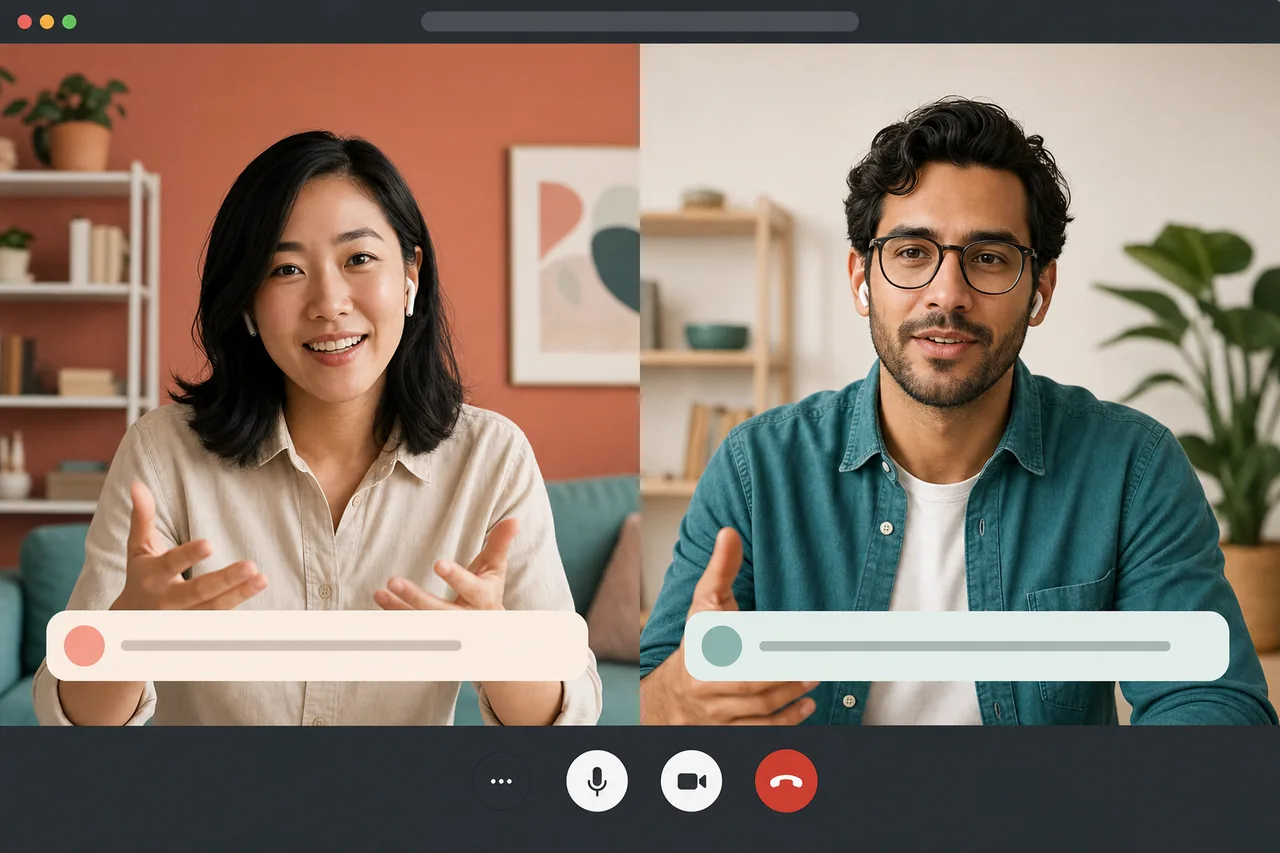
Yes — Zoom can translate a call in real time, but only in one specific way: as live translated captions, the text you read on screen while someone speaks. You turn on captions, set the spoken language, pick a language to translate them into, and the words appear in that language as the conversation happens. It’s useful for following along. But there are two catches most guides skip — it’s text to read rather than a translated voice, and translated captions sit behind a paid plan — and together they decide whether Zoom is even the right tool for your call.
Below: how to actually switch it on, the limits nobody mentions, and when a speech-to-speech translator is the better fit.
How Zoom real-time translation actually works
What Zoom markets as translation is live translated captions. Here’s how to translate a Zoom call into another language during a meeting:
- First, make sure the feature is enabled. Translated captions usually have to be switched on in your account or admin settings before they appear in meetings — if you don’t see the option, that’s the most common reason.
- In the meeting, open the Show Captions / CC control in the toolbar.
- Go to Caption Settings and confirm the spoken language — the language people are actually speaking. Get this wrong and the captions read as gibberish.
- Choose Translation, then pick your target language from the list.
- Captions now appear translated, live, for you. Each person can usually pick their own target language, so everyone reads along in the language they understand while the speaker keeps talking normally.
That’s the whole flow. When it’s set up right, it’s a genuinely handy reading aid for a multilingual meeting. Now the parts that trip people up.
Zoom live translation: the limits nobody mentions
It’s text to read, not a translated voice. This is the big one. Zoom live translation gives the listener captions to read. The other person still hears your original audio — your actual voice, in your actual language. There is no translated voice spoken to them. If your counterpart is comfortable reading fast English while you talk, fine. If they need to hear the call in Spanish or Japanese and reply by voice, captions don’t deliver that. You both end up reading subtitles on a call instead of having a conversation.
It usually isn’t free. Basic same-language captions are generally available, but translated captions — turning one spoken language into another on screen — typically require a paid Zoom tier or a Translated Captions add-on on top of your plan. So “Zoom can translate” quietly means “Zoom can translate if you’re on the right plan and someone enabled it.”
Whether a guest gets it depends on the host, not the link. A guest can join a Zoom meeting by link, but translation isn’t part of that link. What an outside client sees depends on the host’s plan and account configuration. You can’t reliably hand someone a plain invite and expect a fully translated experience to just appear for them.
None of this makes Zoom translation bad. It makes it a reading aid for a meeting you’re already running in Zoom — not a way to actually talk across a language gap. The same pattern holds for other platforms: Google Meet’s native translation and Microsoft Teams’ translation are also captions to read along, not a translated voice for the other side.
Translate a Zoom call vs. a speech-to-speech room
Here’s the honest dividing line. Use Zoom’s captions when everyone can read the other language and you just want to follow a group meeting. Reach for a speech-to-speech tool when someone actually needs to hear the conversation in their language and answer by voice — a sales call, a client check-in, a support session, an interview, a first conversation with a partner abroad.
That’s where Talkniva is built differently. Its beta meeting interpreter brings two-way translated voice to an existing Zoom meeting. Paste the Zoom link in Talkniva, choose the two languages, and a bot identified as a Talkniva interpreter joins as a participant. The host speaks and listens through the Talkniva browser tab; everyone else remains in Zoom and does not install a Talkniva plugin or create a Talkniva account.
This is not an overlay that changes the Zoom interface: the interpreter is a visible meeting participant. Depending on the meeting settings, it may wait until the host admits it. The external-meeting mode is voice-only — it does not add Talkniva captions or translated video to Zoom. If the host also wants video, they can keep Zoom open in another tab with that tab’s microphone and audio muted to avoid echo. The meeting interpreter supports a configured pair chosen from 13 spoken languages and uses prepaid minutes. See the full languages list or browse more guides in our resources hub.
Because the integration is in beta, test it before a critical meeting and keep a fallback. The host must also have permission to bring an interpreter and inform the participants that the Talkniva interpreter processes the meeting audio. Talkniva does not record or store call audio, video, or transcripts.
The short version
- Can Zoom translate in real time? Yes — as translated captions. Text to read, switched on under the captions control once the feature is enabled in your account.
- It usually needs a paid tier or add-on, it won’t give the other side a translated voice, and whether a guest gets it depends on the host’s setup.
- For reading along, Zoom captions do the job. For two-way translated voice, Talkniva’s beta interpreter can join the Zoom meeting as a participant while the host speaks and listens through Talkniva.
If your next Zoom call hinges on being heard in someone else’s language, sign in to Talkniva, choose the meeting option, paste the link, select the two languages, and accept the beta and participant-consent conditions. Then admit the named interpreter if Zoom places it in the waiting room. Start now.
Frequently asked questions
Can Zoom translate a call in real time? Yes, but only as translated captions — text you read on screen while someone speaks. You turn on captions, set the spoken language, and pick a language to translate them into. It does not give the other person a translated voice, and translated captions require a paid Zoom plan or add-on.
How do I turn on translation in Zoom? In a meeting, open the Show Captions or CC control, go to Caption Settings, confirm the spoken language, then choose Translation and pick your target language. The feature has to be enabled in your account’s admin settings first, and translated captions need a paid plan or add-on.
Is Zoom real-time translation free? Basic same-language captions are generally free. Translated captions — turning one spoken language into another on screen — typically require a paid Zoom tier or a Translated Captions add-on, so it is not free for most accounts.
Does Zoom translate the speaker’s voice? Zoom’s native translation does not: it produces captions to read. For translated voice, Talkniva’s beta meeting interpreter can join the Zoom meeting as a named participant and carry audio both ways while the host speaks and listens in the Talkniva browser tab.
Can a guest join a translated Zoom call by link without an account? A guest can join Zoom by link, but access to native translated captions depends on the host’s plan and settings. With Talkniva’s beta interpreter, participants remain in Zoom and install nothing from Talkniva; a named interpreter bot joins the meeting and may need to be admitted from the waiting room.